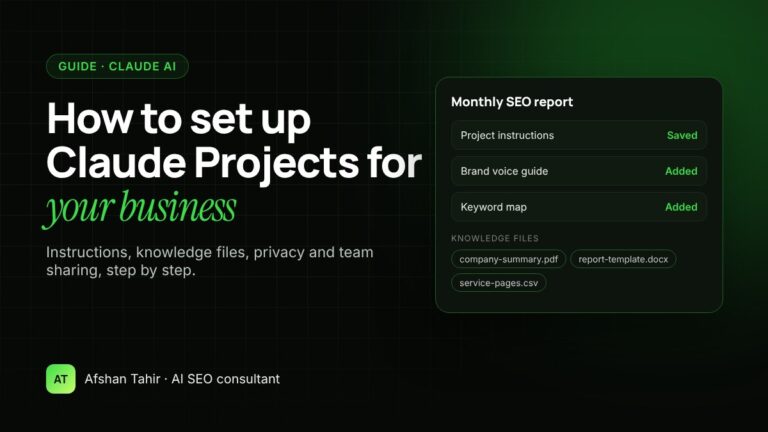
A Claude Project is a shared workspace inside Claude where you save your instructions and business files once, so every chat starts with the same context. For a business, that means on-brand answers, fewer copy-paste prompts and work your whole team can repeat. Below is the exact setup I use for clients, step by step.
I set up Claude Projects for businesses as part of my AI automation services. This guide shows you how to do it yourself first.
What is a Claude Project?
A project is a self-contained workspace in Claude with its own chat history, its own instructions and its own knowledge files. Anything you upload to a project is used as background in every chat inside it (Claude Help Center).
| Normal chat | Claude Project | |
|---|---|---|
| Instructions | You repeat them every time | Saved once, used in every chat |
| Business files | Uploaded into one chat only | Saved in project knowledge for all chats |
| Consistency | Depends on how you prompt that day | Same rules, tone and facts every time |
| Team use (Team and Enterprise plans) | Not shared | Shared with “Can view” or “Can edit” access |
When does a business need a Claude Project?
Create a project for any task you do every week with the same rules. These are the three I set up most often:
- SEO and marketing reports. The project knows your website, goals, competitors and report format, so you paste in the month’s data and get a consistent summary.
- Content briefs and drafts. The project holds your brand voice, service pages and keyword map, so briefs match your strategy instead of generic AI advice.
- Customer replies and FAQs. The project holds your policies, prices and tone, so your team drafts accurate replies faster. A person still checks every reply before it goes out.
One rule: one project per job, not one project for the whole business. A focused project gives better answers than one stuffed with everything.
How to set up a Claude Project, step by step
1. Create the project
Open Projects in the left sidebar of Claude (or go to claude.ai/projects) and click + New Project. Give it a clear name, such as “Monthly SEO report – company website”. Claude can’t read the project description, so put anything important in the instructions instead (Claude Help Center).
Projects are available on every plan, including free accounts, but free accounts are limited to five projects.
2. Write the project instructions
Click Set project instructions. This is the most important step. Good instructions answer five questions:
- Role: who Claude should act as (“You are our SEO analyst”).
- Business context: what you sell, to whom, and where.
- Task: what a good result looks like, including length and format.
- Rules: what to always do and never do (for example, “never invent numbers”).
- Output: tables, headings, bullet points, or a ready-to-send email.
Here is a shortened example from a reporting project:
Each month I will paste Google Search Console and GA4 exports.
Write a one-page report with:
1. Three headline numbers vs last month (clicks, impressions, booking-form leads)
2. Top 5 pages gaining and losing clicks
3. Three actions for next month, ranked by impact
Rules:
– Use only the numbers in my files. If something is missing, say so.
– Plain English, no jargon. The reader is the clinic owner.
– Never promise rankings or traffic.
Notice the rule “use only the numbers in my files”. AI tools can fill gaps with guesses, so your instructions should tell Claude what to do when data is missing.
3. Add project knowledge
Use the + button in the project knowledge panel to upload documents, text files or code. Claude reads these as background for every chat in the project. Useful files for a business project include:
- A one-page company summary: services, locations, prices and audience
- Brand voice guidelines with two or three examples of writing you like
- Your keyword-to-URL map or list of service pages
- A past report or brief you were happy with, as a template
On paid plans (Pro, Max, Ultra, Team and Enterprise), Claude switches on retrieval (RAG) automatically when your files get close to its memory limit. That expands project capacity by up to 10 times (Claude Help Center). Even so, fewer, cleaner files give better answers than hundreds of old documents.
4. Test with real tasks
Run three real tasks in the project before anyone relies on it. Check every fact against your source files. When an answer is wrong, fix the instructions or the knowledge file, not just that one chat. Context does not carry from one chat to the next unless it’s in the project knowledge.
5. Share it with your team
On Team and Enterprise plans, click Share project and add people by name or email. Give “Can view” to people who only use the project, and “Can edit” to the one or two people who maintain its instructions and files (Claude Help Center). On individual plans (Free, Pro, Max and Ultra), projects aren’t shared with other people.
Is a Claude Project private?
A project on a Team or Enterprise plan can be private (invited members only) or visible to everyone in your organisation. On individual plans, only you see your projects.
For training: on Free, Pro and Max plans, Anthropic says it uses chats to improve its models only if you allow it, if a chat is flagged for safety review, or if you send feedback (Anthropic Privacy Center). You can change this in your privacy settings. Business plans fall under Anthropic’s commercial terms, so check those with whoever manages your account.
Whatever the plan, my rule for clients is simple: don’t upload passwords, card details, customer personal data or anything covered by a confidentiality agreement unless your plan and policies allow it.
Claude Project memory
Where memory is turned on, each project keeps its own memory, separate from your other projects. You can switch off “Use account memory” inside a project to keep it completely isolated, which is useful when one project holds one client’s work (Claude Help Center).
Five mistakes that make projects give weak answers
- One giant project for everything. Split by job: reports, content and support.
- Vague instructions. “Be helpful and professional” tells Claude nothing. Describe the reader, the format and the rules.
- Old or conflicting files. Two price lists means Claude may use the wrong one. Keep one current version.
- No “missing data” rule. Tell Claude to say what’s missing instead of guessing.
- No human check. Anything customer-facing or with numbers in it gets reviewed before it’s used.
Should you set it up yourself or get help?
A single project for your own use usually takes about an hour with this guide. It’s worth getting help when you want several projects for a team, workflows that connect to your data (Search Console, GA4, your CRM), or training so your staff use it the same way.
That’s what my AI automation services cover: I design the projects, write and test the instructions with your real tasks, and train your team. If you mainly want to be found in AI search tools like ChatGPT and Google AI Overviews, see my AI SEO services instead.
Frequently asked questions
Are Claude Projects free?
Yes, projects are available on the free plan, limited to five projects. Paid plans add more capacity for large knowledge files, and Team and Enterprise add sharing.
What is the difference between a Claude Project and a normal chat?
A normal chat starts from zero each time. A project keeps your instructions and files and applies them to every chat inside it.
Can I share a Claude Project with my team?
Yes, on Team and Enterprise plans. You can give each person “Can view” or “Can edit” access, or make a project visible to your whole organisation.
What should I put in Claude Project instructions?
The role, your business context, the task, the rules (including what to do when data is missing) and the output format. Keep it to one page.
How many files can I add to a project?
Claude’s help pages don’t give a fixed file count. On paid plans, retrieval switches on automatically when knowledge nears the limit, expanding capacity up to 10 times.
Want Claude Projects set up for your team? Book a free 30-minute AI call and I’ll show you two or three tasks worth turning into projects first.